Configure Amazon QuickSight
Configure Amazon QuickSight
To begin, navigate to the Amazon QuickSight console.
You will see a notice to subscribe your account to QuickSight.

Click Sign Up for QuickSight
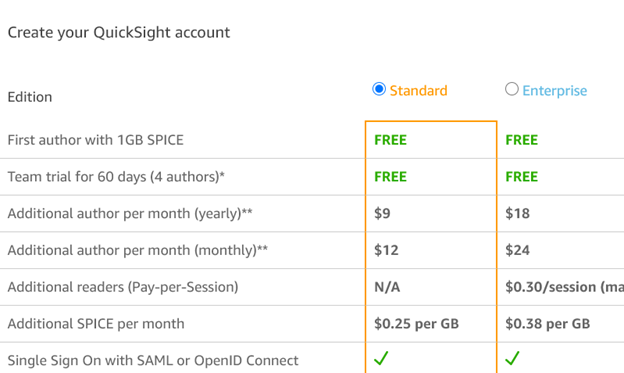
On the next screen, you have 2 options. Choose Standard edition.
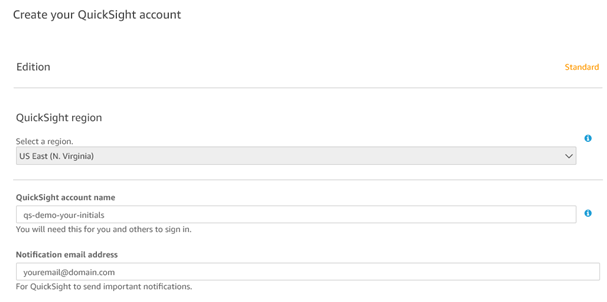
On the next screen, enter qs-demo-your initials as the QuickSight account name. For notification email address, enter any email address that you have access to.
Select the following checkboxes to ensure QuickSight has access to the correct services: Amazon Athena, Amazon S3. Make sure to select Choose S3 buckets and check that you give access to all buckets in your account.

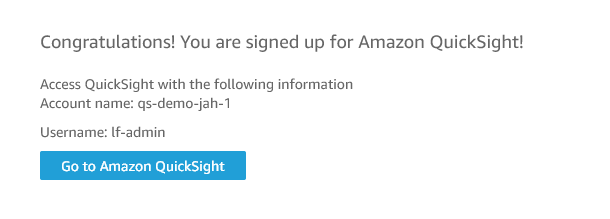
Click Create and you should receive a confirmation that the account has been subscribed.